



Last Updated: May 26, 2026
What Can You Download with GetInSaver Instagram Reels Downloader?
Instagram Reels are short, fast-moving videos built for discovery, tutorials, entertainment, trends, and creator updates. GetInSaver Instagram Reels Downloader focuses on this exact format: paste a public Reel link, let the page read the available media, and save the video in a device-friendly MP4 format when the source exposes it.
1. Public Instagram Reels: The primary workflow is a direct instagram.com/reel/... URL copied from the Instagram app or browser. A clean Reel link helps the downloader identify the original video source more reliably.
2. HD-friendly MP4 Videos: Reels are usually delivered as compact vertical videos. GetInSaver aims to return the best available source quality so the saved file remains sharp on mobile screens, tablets, and desktop players.
3. Creator and Trend References: Many users save Reels for research, inspiration, tutorials, recipes, workout clips, or creative references. A local copy makes it easier to review useful public content later without searching through Instagram again.
4. Mobile and Desktop Links: Whether the link comes from the Instagram mobile app or a desktop browser, the Reels page keeps the same simple flow: copy, paste, preview, and save.
Why Use a Dedicated Instagram Reels Downloader?
A general Instagram downloader can handle many content types, but Reels deserve a clearer page because users often search specifically for Reel video saving, HD quality, and no-watermark workflows. This dedicated page keeps the message focused and reduces confusion for both users and search engines.
Clear Reel Intent: The page title, guide, FAQ, and internal links all match the Reel use case. This helps visitors immediately understand they are in the right place.
No Login Required: GetInSaver does not ask for Instagram credentials. It works with publicly accessible links and avoids risky account-access flows.
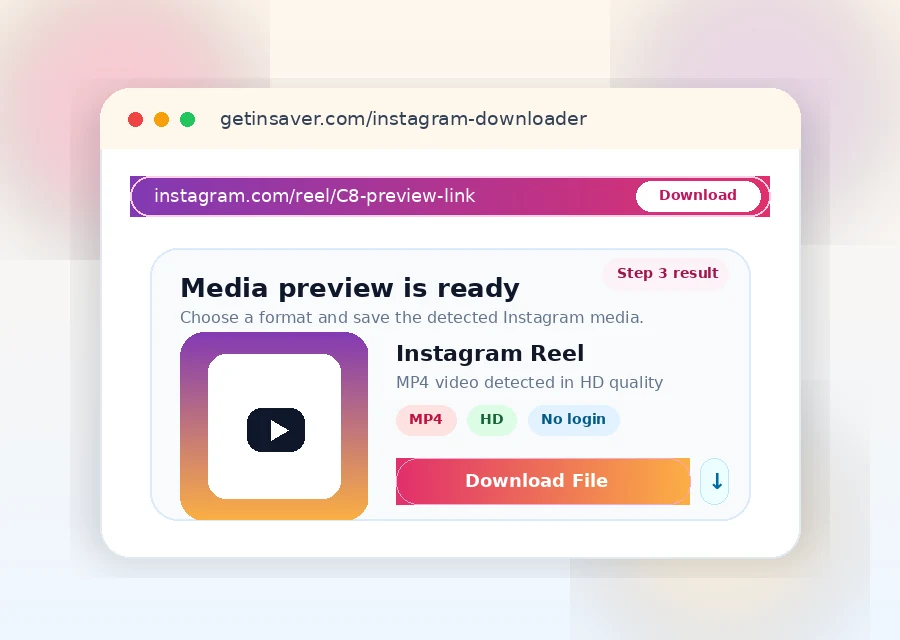
Clean Result Experience: The downloader result is designed to show the media preview and download action clearly, especially on mobile where users need large tap targets and predictable layout.
Tips for Better Instagram Reel Downloads
Use the direct Reel URL: Copy the link from the Reel share menu or browser address bar. Direct /reel/ links are cleaner than copied profile or feed URLs.
Keep the tab open: On slower mobile networks, wait until the preview card appears before tapping the final download button.
Check source availability: Public links work best. Private accounts, deleted Reels, or restricted sources cannot be downloaded reliably.
Save with context: If you use Reels for research or inspiration, keep the original URL and download date with the file so your archive stays organized.
Reels Format and Quality Notes
Most Instagram Reels are saved as MP4 video files because MP4 plays reliably across iPhone, Android, Windows, macOS, and modern browsers.
- Video: MP4 is the normal output format when a public Reel video source is available.
- Quality: The available resolution depends on the original upload and the source response at download time.
- Audio: Reel audio is usually preserved inside the MP4 file when Instagram exposes a complete video stream.
If a Reel has been removed, made private, region-limited, or blocked by the source, the downloader may not be able to return a usable file.
Related Free Social Media Downloaders
Frequently Asked Questions – Instagram Reels Downloader
How do I download Instagram Reels and videos with a link?
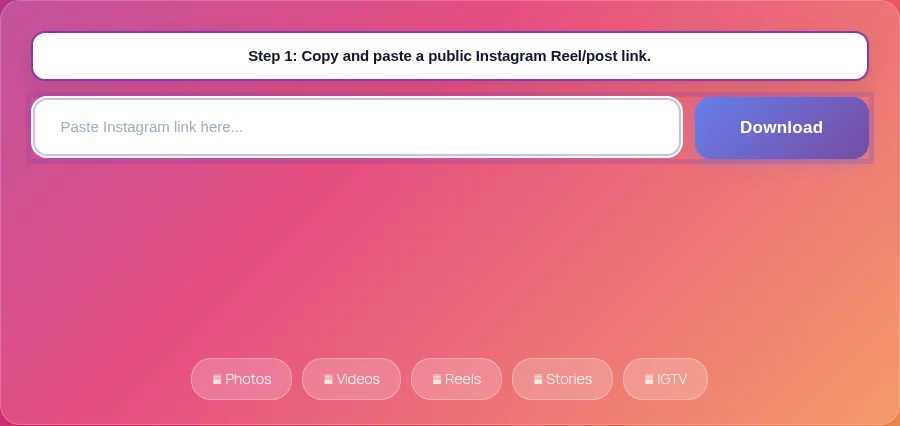
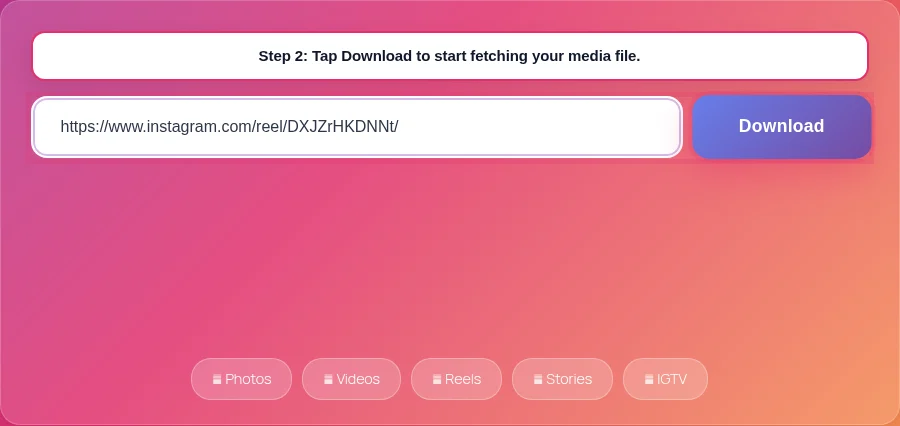
Copy the public Instagram post or Reel URL, paste it into the downloader box, and click Download. GetInSaver retrieves the available media file and prepares a direct download for your device.
Can I download Instagram carousel posts (multiple photos/videos)?
Yes. For supported carousel posts, GetInSaver detects multiple media items and returns downloadable files for each slide when available.
Why does an Instagram link fail or return no media?
Typical causes are private accounts, deleted posts, temporary Instagram delivery issues, or malformed links. Use the original public URL and try again.
Is this Instagram downloader safe for my account?
Yes. GetInSaver does not ask for your Instagram password or account login. You only submit a public link, which reduces account security risk.
Which formats are supported for Instagram downloads?
Videos are commonly returned as MP4. Images are served in source formats such as JPG/PNG based on what Instagram exposes for that post.
Can I use Instagram downloader on iPhone and Android?
Yes. It works in modern mobile browsers. On iPhone, files usually go to Files/Downloads first. On Android, files are saved to the Downloads folder.
Is there a daily download limit?
No fixed per-user daily quota is enforced in GetInSaver. Performance depends on source availability and network conditions.